
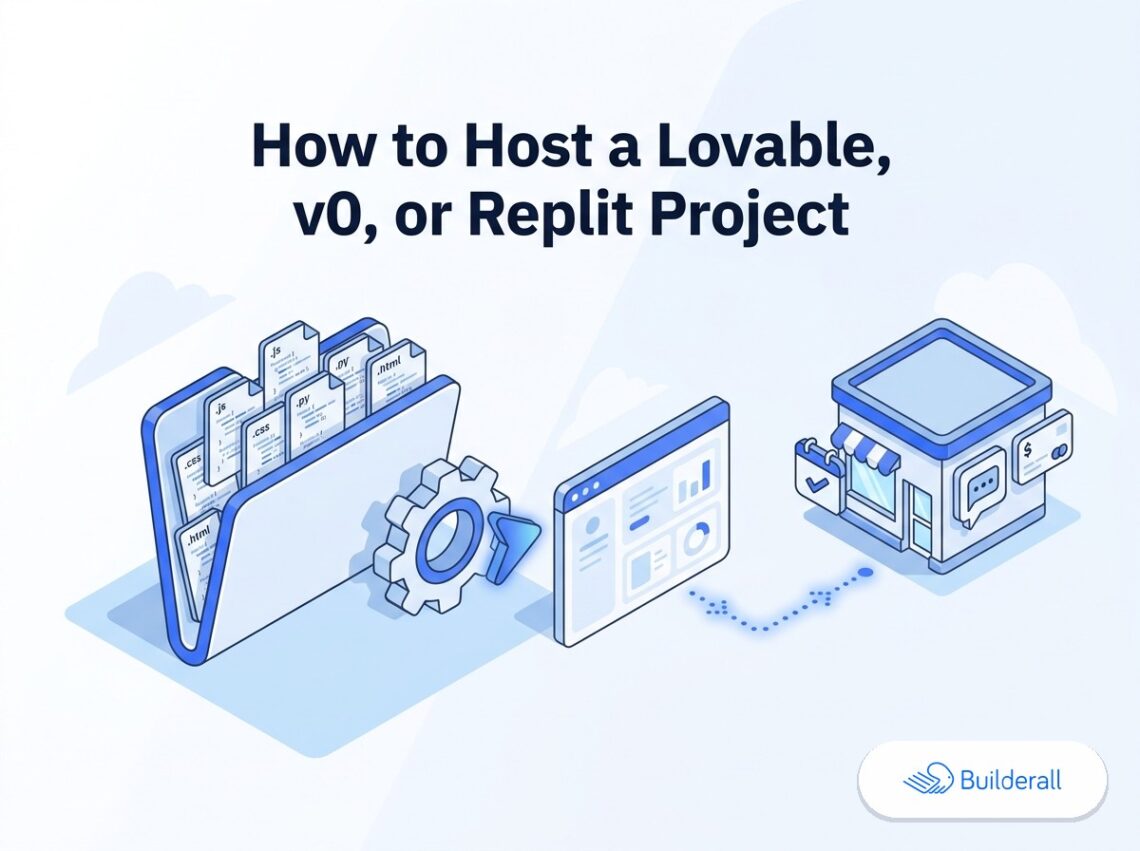
Lovable, v0, and Replit typically generate a React or Vite project — source code, not a finished, browser-ready site. Builderall hosts static HTML/CSS/JS, so you need to export a static build first before uploading. It’s a one-time, two-minute step, not a dealbreaker. Here’s exactly what that means and how to do it.
Why this step exists
A React or Vite project isn’t a website yet — it’s source code that needs to be built (compiled) into the plain HTML, CSS, and JavaScript files a browser actually reads. Platforms like Vercel and Netlify handle that build step automatically when you connect a Git repository, running the build on their servers every time you push code.
Builderall’s hosting works differently: it’s a static upload, similar to Netlify Drop. You upload finished, already-built files, and there’s no server-side build process running behind it. That’s a genuine tradeoff — it means no Git required, no CLI, nothing to configure — but it also means the build step has to happen before you upload, not after.
This isn’t unique to Builderall. Any purely static host works this way. The difference is just where the build happens: on a platform’s servers (Vercel, Netlify with Git) versus on your machine or inside the tool itself, once, before you upload.
Step 1: Export your project as a static build
The exact step depends on your tool:
- Lovable: use the project’s export/download option to get the source, then run the build locally (or check whether Lovable offers a direct static export option in its publish settings).
- v0: download the generated code, then build it as you would any Next.js/React project.
- Replit: use Replit’s build or export feature to generate a production build of your project.
In each case, you’re looking for a build or dist folder — that’s the static output: plain HTML, CSS, and JS files, ready to be hosted anywhere.
Step 2: Run the build (if you haven’t already)
If your tool gives you raw source code rather than a pre-built export, this usually means running something like:
npm install
npm run build
on your own machine, in the project folder. This only needs Node.js installed — it’s a one-time setup, and you won’t need to touch a terminal again after this step for this project.
Step 3: Upload the build output to Builderall
Once you have the build or dist folder, upload its contents (not the original source code) to Builderall’s custom code upload. This is the important distinction — uploading the source files instead of the built output is the single most common mistake at this stage, and it’s what causes a blank page after upload. See What to Do When Your AI-Generated Site Shows a Blank Page After Upload if that happens.
Step 4: Check your site’s routing
If your project uses client-side routing (multiple pages that aren’t separate HTML files), double-check that navigation between pages still works after upload — this is a common trouble spot for static exports of single-page-application frameworks. If a page works when you land on it directly but breaks when you navigate to it from another page, that’s a routing configuration issue worth checking against your framework’s static-export documentation.
What’s already there once it’s live
Once your exported site is uploaded and live, the rest of your Builderall account is already available — email automation, booking, chat/DM automation, social proof, courses, and lead tracking — without adding another tool. See Your AI Website Is Live. Now What? for the full picture.
Frequently Asked Questions
Does Builderall support React or Next.js directly?
Not as a server-side build — Builderall hosts static output. If your project is React/Vite/Next.js, export a static build first, then upload the result.
Is this harder than using Vercel or Netlify?
It’s an extra one-time step (the export/build), but after that, there’s no ongoing Git or CLI workflow to maintain — for many non-developers, avoiding that ongoing complexity is worth the one extra step up front.
What if my project uses server-side features (API routes, server actions)?
Those require a server-side runtime and won’t work with a purely static host — that includes Builderall, Netlify Drop, and GitHub Pages. If your project genuinely needs server-side rendering or API routes, Vercel or Netlify’s Git-connected pipeline is the better fit. See Builderall vs. Vercel for an AI-Generated Website for that comparison.
What if I don’t know how to run a build command myself?
Some AI tools offer a direct “export static site” or “download for hosting” option that skips the manual npm run build step — check your tool’s publish or export settings first. If not, the commands above are the standard, one-time way to do it.





3 Comments on “How to Host a Lovable, v0, or Replit Project on Builderall (Static Export Guide)”