
Last Updated: November 8, 2026
Quick Summary
To integrate appointment scheduling with email marketing, map the booking journey first, then connect one source-of-truth calendar to your booking tool and email platform in six steps. Build confirmation, reminder, reschedule and no-show templates, and decide which system owns each message to avoid duplicates.
- Write out every step a customer takes from first click to confirmed appointment before connecting any tools.
- Keep client appointments on a dedicated booking calendar separate from your personal events.
- Send a test booking and check both directions: the calendar event and the email platform contact record.
- Keep confirmation emails under 120 words with the appointment details in the first two lines.
- Cap total sends at three messages per booking: confirmation, reminder, and one follow-up if needed.
Table of Contents
- Map the Booking Journey Before You Connect Anything
- Connect Your Calendar to Your Email Platform in Six Steps
- Write Appointment Scheduling Email Templates That Get Opens
- Choose the Best Appointment Scheduling Tools for Small Business
- Apply Email Marketing Automation Best Practices to Booking Workflows
- How to Track Booking Conversions in Email Without Guesswork
- Fix Broken Automations Before They Cost You Bookings
- Launch Your First Booking Workflow Inside Builderall
- Frequently Asked Questions
Map the Booking Journey Before You Connect Anything
Most failed integrations start with a tool, not a plan. Before you touch a single setting, write down every step a customer takes from first click to confirmed appointment. That map is the whole game.
Appointment scheduling is the process of letting clients pick a time slot from your live availability, then confirming that booking automatically through your calendar and email systems.
Here is the journey to write out:
- The customer finds your booking page
- They pick a service and a time
- They enter contact details
- They get a confirmation email
- They get a reminder before the appointment
- They show up, or they reschedule
A common mistake is skipping step 5. If you want a deeper walkthrough of the full workflow before you connect tools, our guide on how to automate appointment booking for business lays out each step.
Write the map on paper first. Then pick your tools.
Connect Your Calendar to Your Email Platform in Six Steps
The connection itself is simple. What trips people up is doing the steps out of order. Follow this sequence exactly.
- Pick one calendar as the source of truth. Choose a single calendar service.
- Create a dedicated booking calendar. Keep client appointments separate from your personal events.
- Connect the booking tool to that calendar. Use the built-in connector, not a manual sync.
- Connect the booking tool to your email platform. Check which integration options your tools provide.
- Send a test booking. Book a slot yourself and watch what arrives.
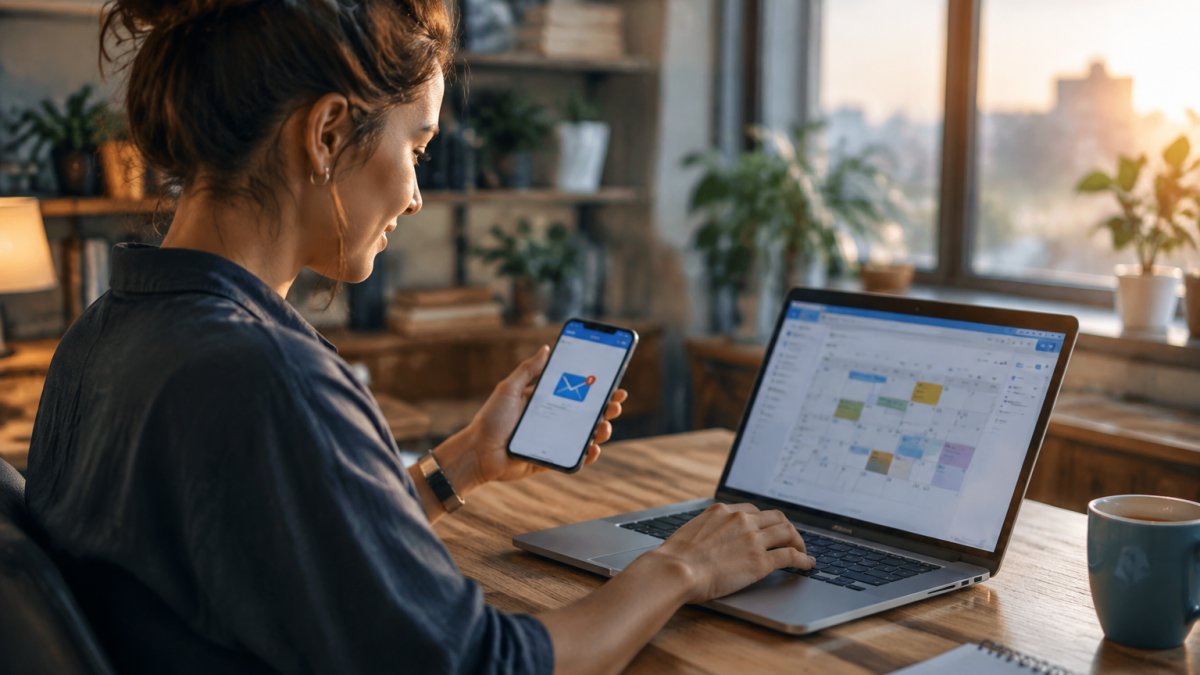
- Check both directions. Confirm the event appears on your calendar and in your email platform’s contact record.
If you are still deciding which email platform to connect, our review of the best email marketing tools for small business covers what each one does well. The connection is only as good as the two systems on either end.
Follow this sequence exactly to connect your calendar to your email platform.
| Step | What to do |
|---|---|
| 1 | Pick one calendar as the source of truth |
| 2 | Create a dedicated booking calendar |
| 3 | Connect the booking tool to that calendar |
| 4 | Connect the booking tool to your email platform |
| 5 | Send a test booking |
| 6 | Check both directions |
Write Appointment Scheduling Email Templates That Get Opens
Your appointment scheduling email templates do one job: move a person from “maybe” to “confirmed.” Everything else is decoration.
Four templates cover almost every situation. Here is what each one should contain, with sample copy you can adapt.
Confirmation (send immediately after booking). Subject line: “You’re booked for [day, time].” Body: confirm the service, the date and time in the client’s time zone, the address or meeting link, and what to bring or prepare.
Reminder (send 24 hours out). Subject line: “See you [day] at [time].” Body: repeat the date, time, and location, then one line on preparation. Do not repeat the full confirmation copy; clients skim reminders for the time and place.
Reschedule (send on request or when availability changes). Subject line: “Need a different time?” Body: a one-click link to your live booking page, plus a line that the original slot will be released. One click, no login, no reply required.
No-show follow-up (send once, within 24 hours). Subject line: “We missed you [day].” Body: a short, non-judgmental note and a fresh booking link. Send it once.
Keep the subject line under 50 characters so it does not truncate on a phone. Put the time and date in the first line of the body, not buried under a logo. One call to action per email, nothing else.
The plain-text version and the branching logic are worth planning carefully. Many clients read on a phone with images off, and a clean text version gets the appointment details through when the designed version does not.
Watch out: if your booking tool sends its own confirmation and your email platform sends a second one, clients get duplicate messages and trust drops. Decide which system owns each message before you write a single template.
Choose the Best Appointment Scheduling Tools for Small Business
The best appointment scheduling tools for small business do three things: sync with your calendar, trigger emails automatically, and stay out of your way. Everything else is a bonus.
Judge each option on these criteria:
- Native email integration, not just a Zapier workaround
- Automatic reminders with custom timing
- Time zone handling for remote clients
- A booking page you can embed on your site
Our review of online appointment booking software compares the practical differences between the main options.
Best for: solo operators who want booking and email in one account.
Skip if: you already run a scheduling system your team depends on.
Apply Email Marketing Automation Best Practices to Booking Workflows
Email marketing automation best practices for bookings come down to timing, restraint, and permission. Send fewer messages, at the right moments, only to people who asked.
The timing rules that matter:
- Send the confirmation immediately. Delay kills trust. A confirmation that arrives an hour late reads as a system that does not work.
- Space reminders out. One at 24 hours, one at 2 hours if the appointment is high-stakes. Two reminders in the same day train clients to ignore both.
- Stop the sequence on cancellation or reschedule. A reminder for a cancelled appointment is the fastest way to lose a client. Build the stop rule into the workflow, not into the template.
- Cap total sends. Three messages per booking is plenty: confirmation, reminder, and one follow-up if needed.
A common mistake is adding a “we miss you” email to every no-show. Send it once. If they do not rebook, let the sequence end.
Permission and deliverability are also important considerations for booking automations. A booking is an expression of interest, but it is not blanket consent to marketing email. Keep transactional messages (confirmation, reminder, reschedule) separate from promotional ones, and give every commercial email a working unsubscribe link. The FTC’s CAN-SPAM compliance guide requires a functioning opt-out and a physical postal address in commercial email; transactional booking messages are treated differently, but the safest pattern is to include an opt-out in anything that also promotes a service. Honor unsubscribe requests promptly, and never require a login or a reply to opt out.
Deliverability is the other half. Automated booking emails land in spam when the sending domain is not authenticated. Publish SPF and DKIM records for your sending domain, and add a DMARC record so receivers know what to do with mail that fails authentication. The Google Workspace sender guidelines spell out what large receivers expect from bulk senders, including authentication and low complaint rates. Keep your list clean: remove hard bounces, and do not import a purchased list into a booking workflow. A purchased list can damage your sender reputation and affect delivery of your confirmations.
For concrete workflow examples you can copy, see our list of marketing automation workflows for small business.
Watch out: if your email platform counts a booking when the link is clicked rather than when the appointment is confirmed, your conversion rate will look better than reality. Check how your tool defines a conversion before you trust the report.
How to Track Booking Conversions in Email Without Guesswork
Tracking booking conversions means connecting three numbers: emails sent, bookings made, and bookings kept. If you cannot see all three in one place, you are guessing.
Set up these markers:
- A unique link in each booking email so clicks are traceable
- A tag applied to every contact who books
- A separate tag for contacts who show up
Compare open rate, click-through rate, and conversion rate per template. The template with the best open rate is not always the one that books the most appointments. Watch the final number.
Watch out: if your email platform counts a booking when the link is clicked rather than when the appointment is confirmed, your conversion rate will look better than reality. Check how your tool defines a conversion before you trust the report.
Fix Broken Automations Before They Cost You Bookings
Broken automations rarely announce themselves. They fail quietly, and you find out when a client says nobody reminded them.
Run this check monthly:
- Book a test appointment and confirm every email arrives
- Cancel a test booking and confirm reminders stop
- Check that calendar events match booked times
- Verify your sending domain is authenticated with SPF and DKIM records
- Confirm the unsubscribe link works in every template
That fourth item matters more than most people think. The FTC’s CAN-SPAM compliance guide requires a working opt-out in every commercial email, and mailbox providers filter hard on authentication. The Google Workspace sender guidelines spell out what receivers expect from bulk senders.
If emails land in spam, check authentication before you rewrite anything.
Launch Your First Booking Workflow Inside Builderall
Builderall offers a booking calendar through its Booking app and email sending through MailingBoss, so you can manage availability, confirmations, reminders and follow-ups from the same account.
Here is the launch sequence:
- Set your availability in Booking
- Build the confirmation and reminder emails in MailingBoss
- Tag every booking contact automatically
- Run one test booking end to end
- Turn it live
If you want to see how the pieces fit together, our small business solutions page shows the full setup.
Connecting a calendar to an email platform should take an afternoon, not a month. If you would rather skip the wiring, Builderall gives you booking, email marketing, and page building in one login, with drag-and-drop setup that needs no code. Get started with Builderall and put your first booking workflow live this week.
Frequently Asked Questions
Can I automate appointment reminders through my email marketing platform?
Yes. Most email platforms let you trigger a reminder sequence based on the booking date stored in a custom field. A common setup sends one reminder 24 hours before the appointment and a second one 1 hour before. Keep the copy short, repeat the time zone, and include a reschedule link. Test the timing with a live booking on your own calendar first, because a reminder that arrives after the appointment is worse than no reminder at all.
How do I track appointment conversions from email campaigns?
Add UTM parameters to every booking link in your emails, then connect your scheduling tool’s confirmation event to your email platform. In practice, this means the contact record shows both the email click and the completed booking. Build a segment of contacts who clicked but did not book, and follow up with them separately. Review the numbers weekly rather than daily, since booking volume is small enough that daily swings are mostly noise.
What are the benefits of integrating scheduling software with email marketing?
Integration removes the manual step of copying bookings into your email list, so confirmation and reminder emails go out without anyone sending them. It also gives you behavioral data: who opened the booking link, who booked, and who dropped off. That data lets you segment follow-ups by actual interest instead of guesswork. The practical result is a list that stays current without a spreadsheet in the middle.
How do I add a booking link to my email signature?
Create a dedicated booking page in your scheduling tool, then paste that URL into your signature as linked text such as Book a call. Keep the link on its own line so it survives mobile email clients, and test it in Gmail, Outlook, and Apple Mail before rolling it out. If your platform supports it, add a tracking parameter so bookings that start from your signature are attributed separately from campaign bookings.