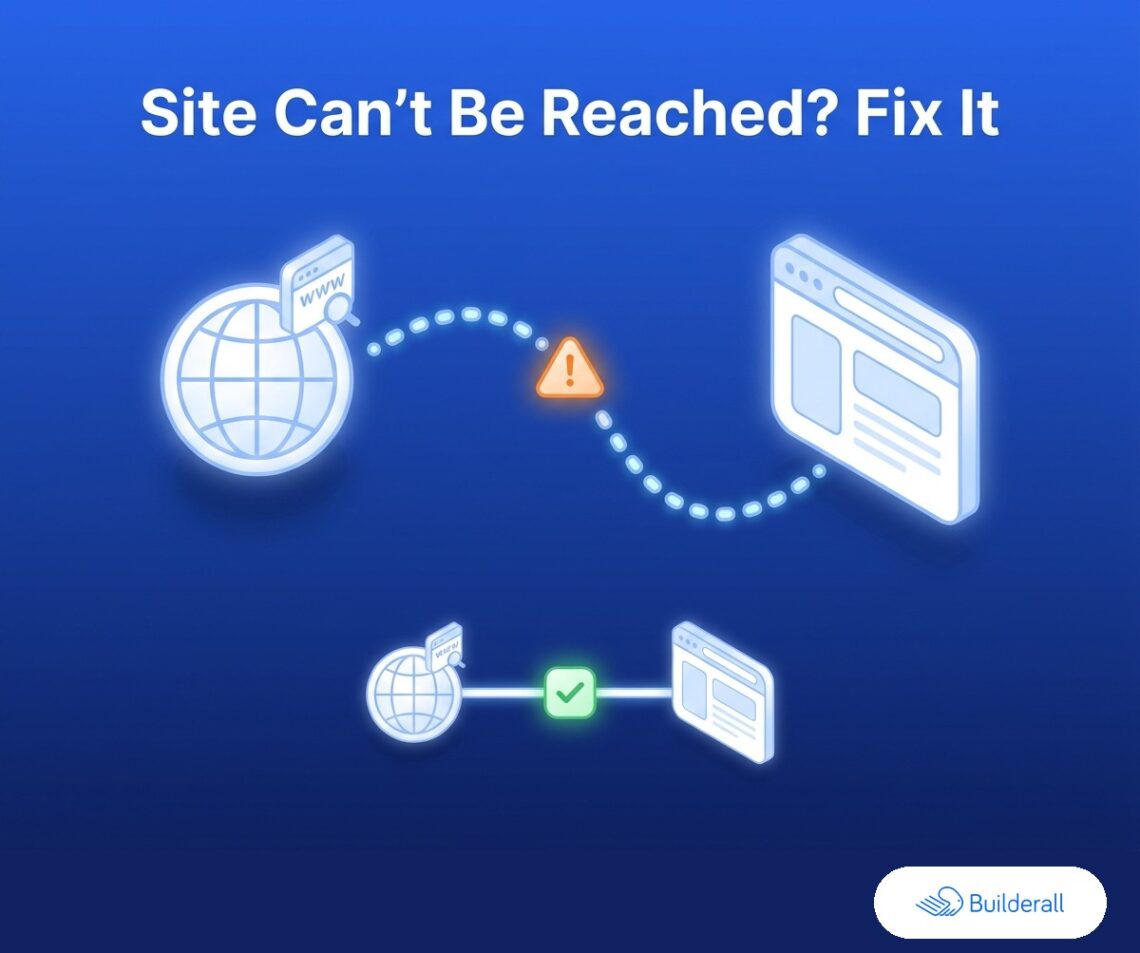
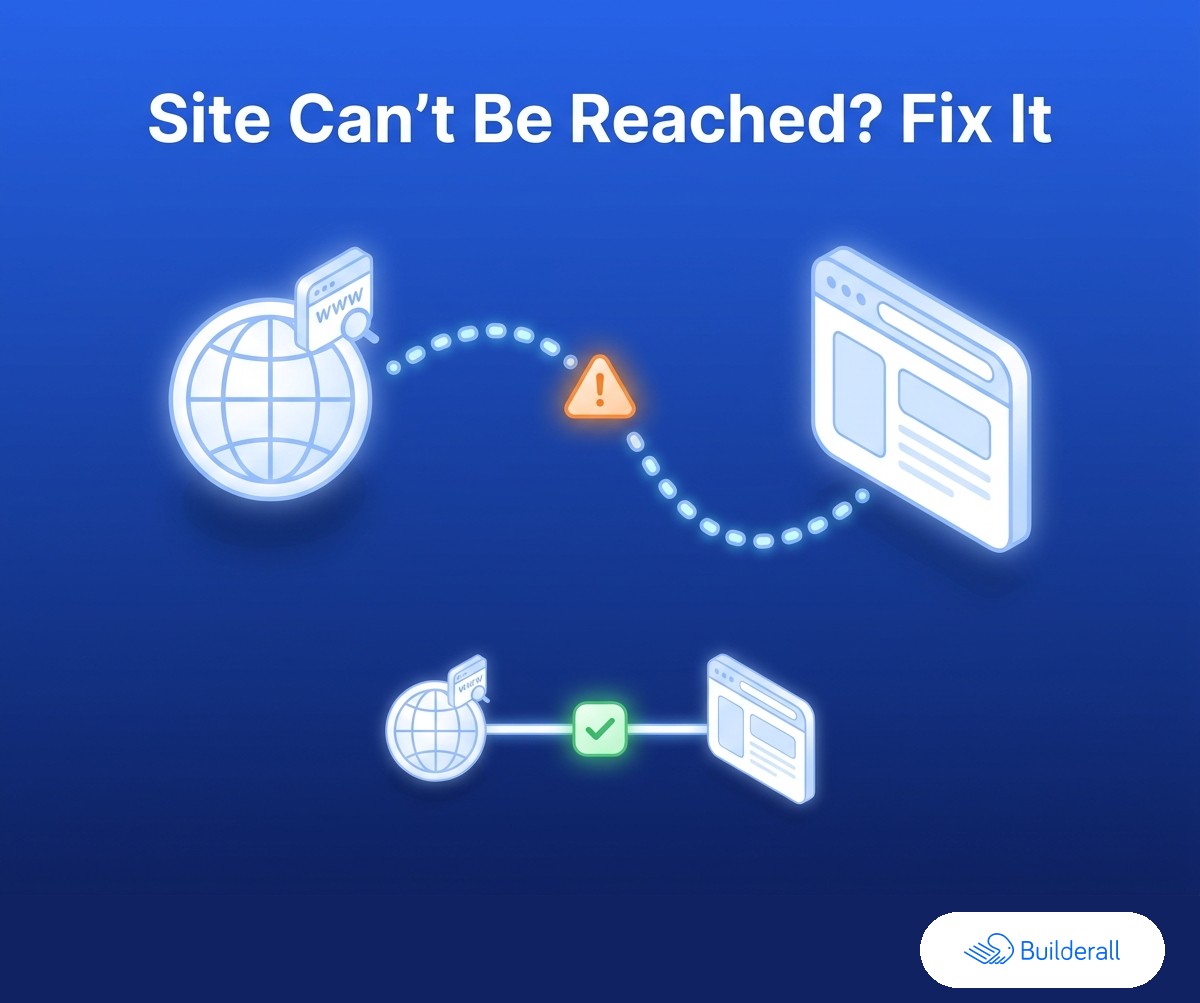
Connecting a custom domain to your AI-generated site and getting “site can’t be reached” instead of your homepage is almost always one thing: DNS hasn’t finished pointing at your host yet, or a record was entered slightly wrong. It’s rarely your site itself. Here’s how to check and fix it.
Why this happens
A domain name and a website are two separate things that have to be manually connected. Buying a domain from a registrar (GoDaddy, Namecheap, or similar) doesn’t automatically point it at your hosted site — you have to add DNS records at the registrar telling it where to send visitors. Until that’s done correctly, and until it propagates (which can take anywhere from a few minutes to a few hours), the domain won’t resolve to your site, and “site can’t be reached” is the browser’s way of saying it doesn’t know where to send the request yet.
Step 1: Confirm your site is actually live first
Before touching DNS, check that your AI-generated site is live and working on its free Builderall’s AI Site Hosting subdomain link. If that link works fine, the site itself isn’t the problem — it’s purely the domain connection. If the subdomain link doesn’t work either, fix that first; a DNS issue on top of a hosting issue is harder to diagnose than either alone.
Step 2: Check the DNS records match what your host expects
Your host (Builderall) will give you specific values to enter at your registrar — typically an A record (pointing to an IP address) or a CNAME record (pointing to a hostname), depending on setup. The most common mistakes: a typo in the value, a record added under the wrong name (e.g. www instead of @, or vice versa), or an old record left in place that conflicts with the new one. Double-check the exact values against what your host specifies, not what you remember from a previous project.
Step 3: Give it time to propagate
DNS changes aren’t instant — they can take a few minutes up to about 48 hours to fully propagate, though same-day resolution is typical. If you just made the change, the “can’t be reached” error may simply mean it hasn’t finished spreading across the internet’s DNS servers yet. Waiting and checking again before assuming something’s broken saves a lot of unnecessary troubleshooting.
Step 4: Once it resolves, make sure the rest of the site is set up right (Core)
Getting the domain to resolve is the DNS half of the problem. The other half is making sure what it points to looks like a finished business presence — your own domain instead of a subdomain, and a professional email address to match it ([email protected]), both included once you’re on Core. Getting DNS working and stopping there, without the domain and email pairing, leaves the job half-done.
Start free → — you can always upgrade once your site’s live.
Step 5: Confirm the basics still work after the domain switch
Once your custom domain resolves, check that your contact form still submits correctly and that any edits you’ve made are visible under the new domain, not just the old subdomain link. Builderall’s free contact form and built-in AI HTML editor carry over to the custom domain automatically — nothing to reconfigure — but it’s worth a quick check after any DNS change, just in case a cached version of the old link is what you’re actually looking at.
The short version
“Site can’t be reached” after connecting a domain is a DNS problem, not a hosting problem, in almost every case — check the records match what your host specifies, then give it time to propagate. Once it resolves, Core’s custom domain and professional email are what make the site look finished, not just functional.
Start free and get your site live today →
Related: How to point a GoDaddy/Namecheap domain at an AI-built site · Free SSL for AI-generated websites: what it is and why you need it · When to upgrade from a free AI website to a custom domain