
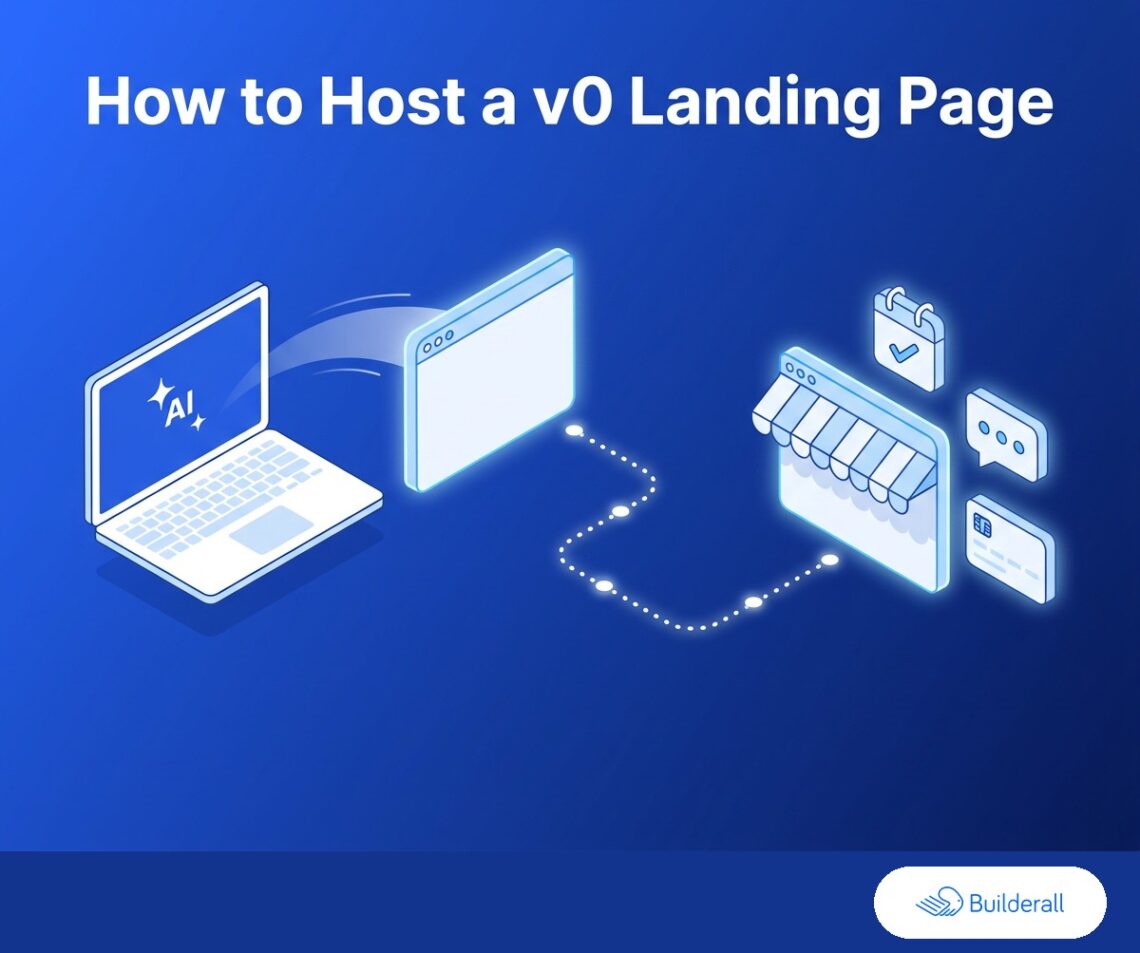
v0 is great at generating a landing page fast. It’s not built to be where that page lives long-term. Here’s how to get the page v0 built for you onto a real, shareable link today for free, and a proper custom domain when you’re ready to commit to it.
Step 1: Get it online (free)
Export the static output from your v0 project — the built HTML/CSS/JS, not the raw source if v0 gave you a framework project — and upload it to Builderall’s AI Site Hosting. You’ll have a live link on a free Builderall subdomain in about a minute, SSL included. That’s enough to share the page with a client, a co-founder, or on social today, instead of only inside v0’s own preview.
Step 2: Move off the preview link (Core)
A v0 preview link is fine for showing someone a draft. It’s not what you want to actually launch with — it doesn’t look like a real product, and you don’t control it. Upgrading to Core gets you a custom domain and a professional email address, so the landing page you shipped from v0 looks like it belongs to a real, standing business or product, not a prototype still living inside a tool.
Start free → — you can always upgrade once the page is live.
Step 3: Your contact or signup form actually works (free)
Builderall’s free tier includes a working contact form out of the box, so a v0 landing page can capture a real submission from day one. (Most hosting options built specifically around AI-generated HTML don’t offer this — a signup or contact form your AI tool built into the page often just sits there with no backend behind it.)
Step 4: Edit the page without going back to v0 (free)
Small tweaks — a headline, a section order, an image — usually mean going back to v0, regenerating, and re-exporting. Builderall’s free tier includes an AI HTML editor built into the hosting instead, so you can edit text and layout, reorder or remove sections, and generate new images directly on the hosted page, without a round trip back through v0.
The editor covers structural and content changes on every plan. Tools like a newsletter form or a booking calendar are automation features that live in Essentials, not the free editor.
Start free → — no rush to upgrade until you actually need those tools.
Step 5: Turning a landing page into a lead pipeline (Essentials)
A working contact form gets you a submission. It doesn’t follow up automatically, remind anyone, or organize what comes in. If the landing page is meant to convert and manage the visitors it already gets — not just capture a one-off submission — Essentials adds automated follow-up, a CRM-style pipeline for what comes in through the form, and a booking calendar if the next step for a lead is scheduling a call. None of that requires rebuilding the page v0 generated; it plugs into the page you already have hosted.
The short version
Free gets your v0 landing page live today, on its own link, with a working form and a built-in editor. Core makes it look like a real product with its own domain and email. Essentials adds the follow-up and pipeline tools for when the page needs to actually convert and manage the leads it gets, not just display well.
Start free and get your page live today →
Related: How to host a Bolt.new static site without paying for Bolt Hosting · How to host a Lovable landing page outside Lovable · Can you host an AI app, or just the website?